
Scenes and the deskPro
Who rides which fader, scene by scene, as a grid you can read from the back of the room — and a cue that moves the desk to match.
1. Tell Cuerunner about the desk
Cuerunner ▾ → Show Settings… → Channels. Pick how the desk is reached — OSC, MIDI, or MIDI over TCP — and the address or port it answers on. A MIDI-over-TCP desk is dialled at the port beside its address — 51325 is what an SQ and an Avantis both serve their MIDI on. The line under it reads back exactly what Cuerunner will send, so you can check it against the console's own documentation before anything is live.
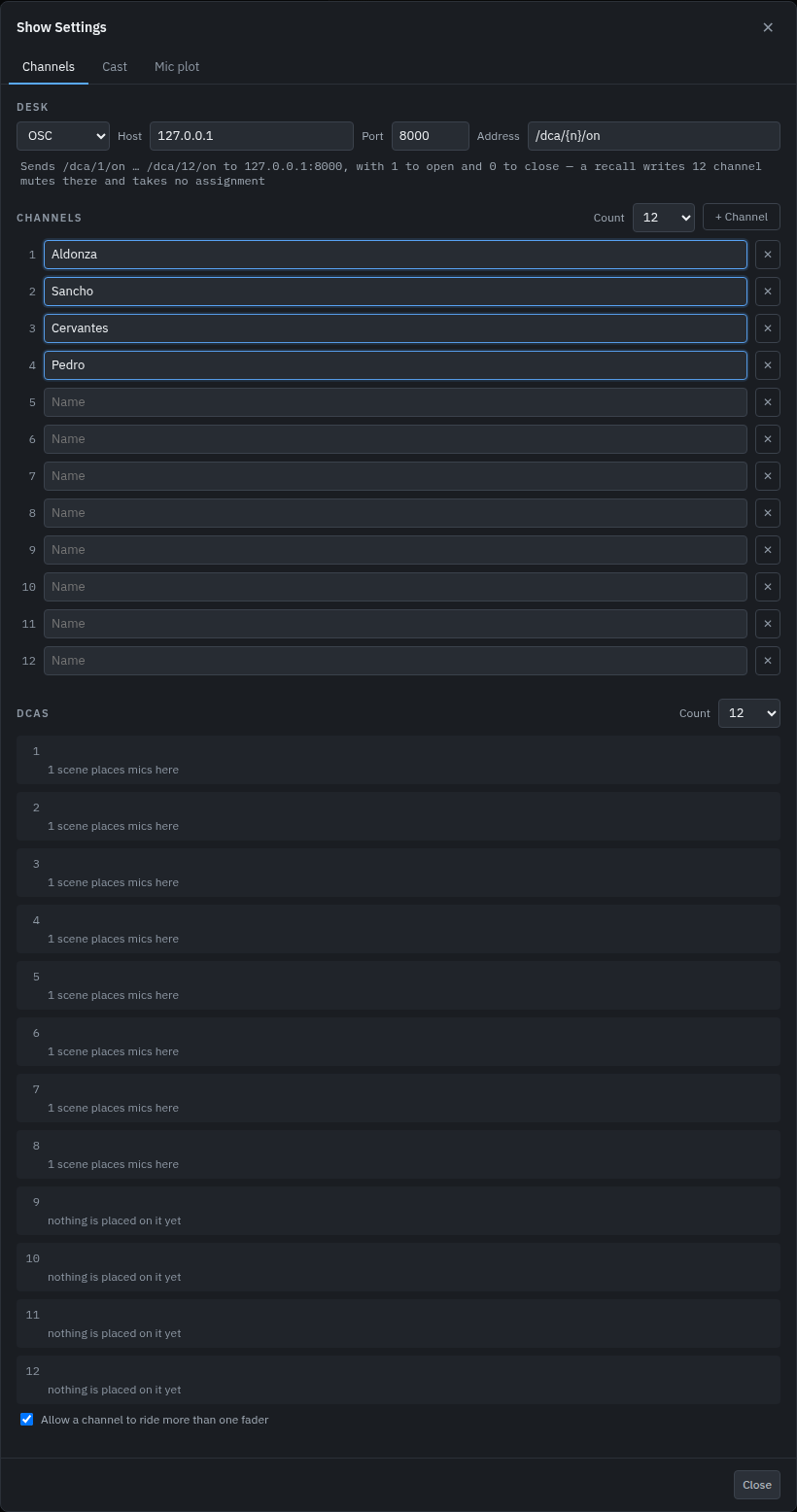
Then list the channels — the strips on the console, a name and a number each — and the faders the show drives, each with its own Count beside the heading: set it to the desk's size and the list is that long at once, so a show set up too large is one press from the right size. The two counts go different ways on the way down. A strip that goes leaves every scene and unpatches whoever was on it: a placement naming a strip that is gone is a cell nobody can read again, and a mic pointed at one opens nothing. A fader that goes takes every scene's row for that place with it and unpatches nobody — the mics stay where they are, and a fader grown back comes back empty. Which channel rides which fader is not set up here: that is the scene's decision, taken in the grid, so a chorus can ride one fader in one number and be split across the stage in the next. A fader is its number — the fourth fader of the show is its fourth fader in every scene, and the grid's rows are named by that number — and each carries one desk number, for a desk that counts its DCAs differently from the show. The row under it says how many scenes put anything on it. Under the faders is the one rule the grid cannot state for itself — Allow a channel to ride more than one fader: left on, a strip rides as many faders as a scene places it on; switched off, the grid keeps one fader per channel and a recall folds a leftover down to the lowest-numbered one. The line under the desk connection reads the desk's own ceiling back too, so a show larger than the desk model states is named there, with the number, and sent as it is.
2. Enter the cast
Cast is the people: a name, a part, the channel they are on and any note you need. A performer is who they are for the whole show — the mic plot hands them packs and the report names them the next morning — so this is where they are set up and nothing else is. The groups they are opened in belong to the grid: build them from the strips a row should carry, where you are standing when you decide who is in the chorus.
3. Build the scenes
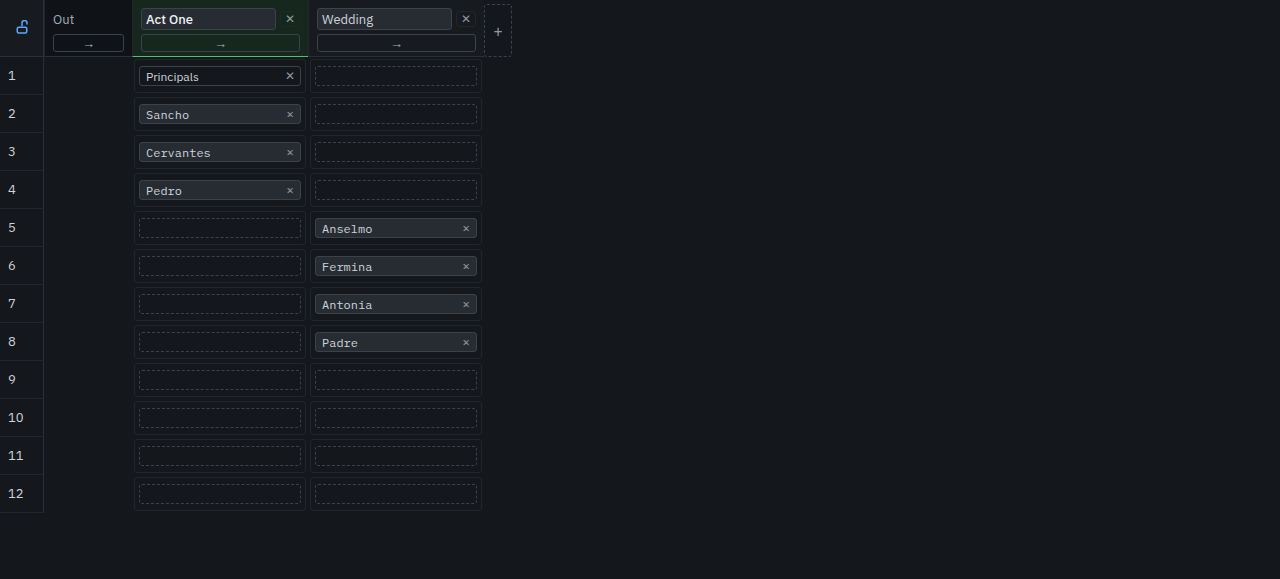
Switch the window to Scenes and unlock the padlock in the grid’s top-left corner; the + after the last scene adds one. The show’s faders run down the side — numbered, because that is what the desk is told and what you reach for — and the scenes across the top. Each row of a scene holds one thing: a strip, or an ensemble over several of them. An empty row is a blank box — press it, type a name into the filter, and pick the strip or the group. A row that holds something is that name, using the whole cell: press it to put something else there, and the ✕ beside it to empty the row. A strip can ride several faders — a chorus master on one and its members spread across others — unless Show Settings has that turned off (Channels → Allow a channel to ride more than one fader), where putting a strip on a row takes it off that scene's other rows.
Several strips on one fader is what an ensemble is for, and Ensemble… — the last row of the box — is where one is built or changed: name it, move the strips it should hold from Available to In the ensemble with the two arrows, and press Create and apply. The group is put on this row, and it is left there to put on other rows and scenes with the same box. Opened from a row that already holds a group it edits that group instead — Save changes it on every row that holds it, because an ensemble is membership rather than a copy, and Delete removes it and empties those rows. A group holds strips, so any strip of the show can be moved across whether or not anybody is cast on it — a rack of playback channels is a group like any other. Lock the padlock again when you have finished.
A scene answers for every channel, not only for the ones it places: a channel it leaves off every fader in that scene is closed by the recall. An ensemble's block says which mics it opens in its title. The leftmost column, Out, is a scene like any other that way — it places nothing, so it closes every mic the show drives — and it is the one column that is never edited. Columns are a fixed width — an eighteen-character scene name is what one is measured for — so a show of two scenes reads the same as a show of twenty: what does not fit across the window scrolls inside the grid.
The grid has two modes, and the padlock in its top-left corner is the one press that changes them: shut, the show is being run and a stray click changes nothing but which scene is recalled; open, cells and names are the show being built and the presses that change it are drawn. Recalling is live in either mode: press Recall on a scene and the desk moves. The column the desk is on carries the running colour down its own header, so the grid always says where you are.
A recall sends what has changed since the desk was last told, so the grid is safe to press twice. What it cannot do is see the desk itself: a fader or a mute moved by hand is invisible here, and the record of what has been sent lives for as long as the show is open — reopening it is what starts the next recall from the whole scene.
4. Put a scene in the cue list
Add a Scene cue (toolbar → More) and point it at a scene. GO now moves the desk as part of the show.
A recall sends two facts and no others: the membership — the channels the scene places on each fader, and the faders it takes them off — and then each mic’s mute. The order matters twice over. The membership comes first because it is what a mute is a state of: a channel the scene has just placed and opened is opened on the fader it was put on. And a mic whose fader changes keeps playing — it takes the new fader’s position and is never muted on the way there. Neither fact names a channel outside the show’s own set: the strips Show Settings → Channels lists are the boundary, and a mute carries the channel’s own number and never a fader’s, because a fader is a control group and closing one is not how a mic is silenced.
What goes out is only what changes, diffed against what Cuerunner last sent, and each write is remembered as it lands. Mics an earlier recall already opened are left alone, so a recall never bumps a live channel and a scene cue is safe to fire twice. Nothing here can see a fader or a mute somebody moved by hand at the desk: a recall sends only what has changed since Cuerunner last sent, so a channel it believes is already closed cannot be closed from here. Reopening the show forgets that record, and the next recall writes every channel the scene controls.
The membership goes over whatever route the show’s desk takes it on: an SQ reached
over MIDI over TCP has it written on its own control service, TCP 51326, and an
Avantis takes it as NRPN 40 on the desk link. A desk with no such route
— a note desk, an OSC desk, or an SQ reached over a plain MIDI port — reports the gap
and writes the mutes anyway rather than going quiet.
5. Run it from the desk’s own keys
A console only reports a key press when the key is assigned to something the console can name, so Cuerunner reads GO and BACK from two mute groups — or from two MIDI notes beside them on the same Show Settings → Channels tab. Assign the groups to two spare keys at the desk and pressing them walks the show’s scenes — GO to the next, BACK to the one before, in the order the Scenes view shows them.
A group’s key toggles the group, so the desk’s indicator stays lit — which is what you want when the light itself is the cue that the show has moved. Where a press only ever means “next cue”, set a soft key to MIDI Note instead (Setup → Surface → Soft Controls on an SQ) and enter the number it transmits as the GO note. That key sends the note only while it is held, so the press steps the show once, the release does nothing, and nothing is left lit at the desk. An SQ’s soft keys transmit from 48 upward, one per key.